DEMO GUIDE
StillDeep Transport
Explore a fictional railway: five stations, ticket desks, kiosks and three trains on one desktop.
Open the desktop →How the desktop works
On a computer, double-click an application icon. On a touch screen, tap it. Each window represents a point of sale or a tool. Minimize, maximize or restore windows with the controls in their title bar. The taskbar lets you return to an open application. Change the desktop language with its language button.
A path to try
- Open a station ticket desk or kiosk. Choose a departure, destination, date and passengers, then follow the available seat and fare options.
- Complete a test sale with the payment details offered in the demo and view its ticket. Open a train tablet to try checking a ticket.
- Open the departure boards, driver screen and train map. Watch the simulator move trains between stations and change their connection status.
What this demo supports
- Ticket searches, fares and seat selection through the StillDeep engine.
- Station and train registers, passenger tablets, arrival and departure boards, and ticket sales online.
- A train simulator that demonstrates losing the connection between stations and synchronizing on return.
Choose a tool to try
Keep the desktop open in its original tab while you follow this guide. The screenshots show the French interface; select an image to enlarge it.
Find your way around the desktop
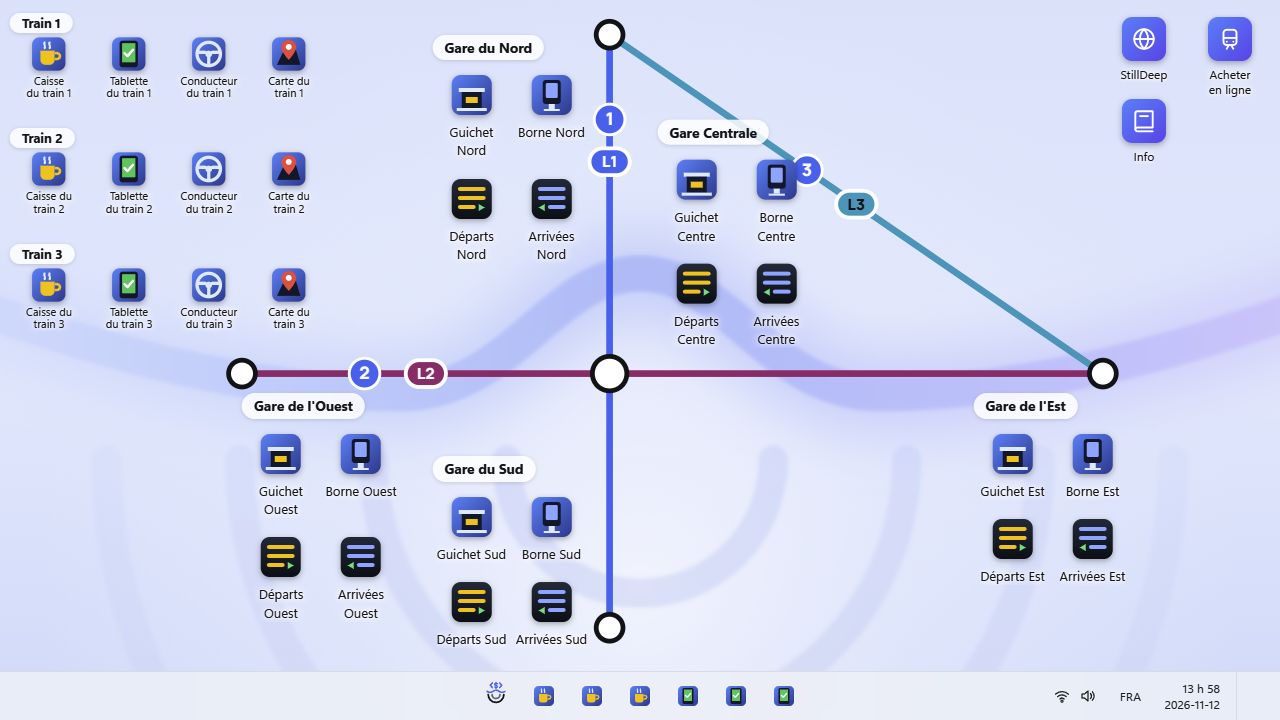
Station ticket desk: search and sell a trip
Open a desk, such as North ticket desk. Use the offered test employee and password, then open or resume a shift.
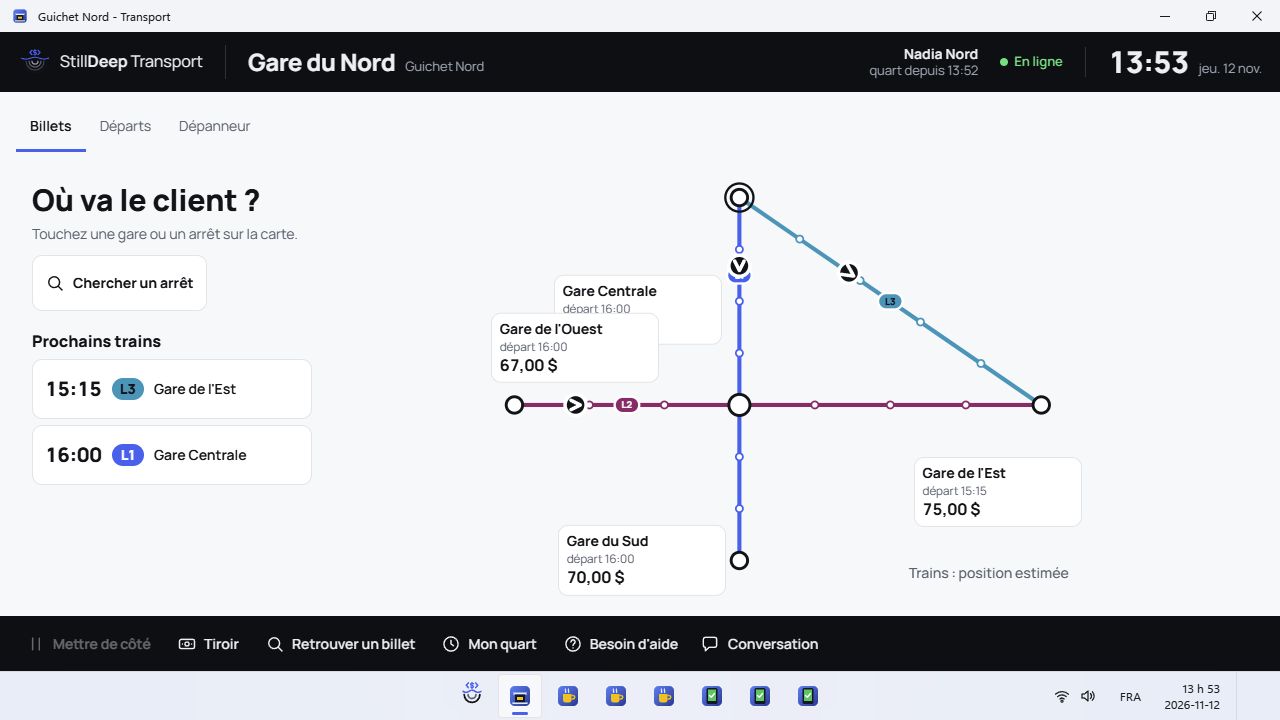
Open a desk, such as North ticket desk. Use the offered test employee and password, then open or resume a shift. Choose origin, destination, date and journey type. Search and select an available departure.
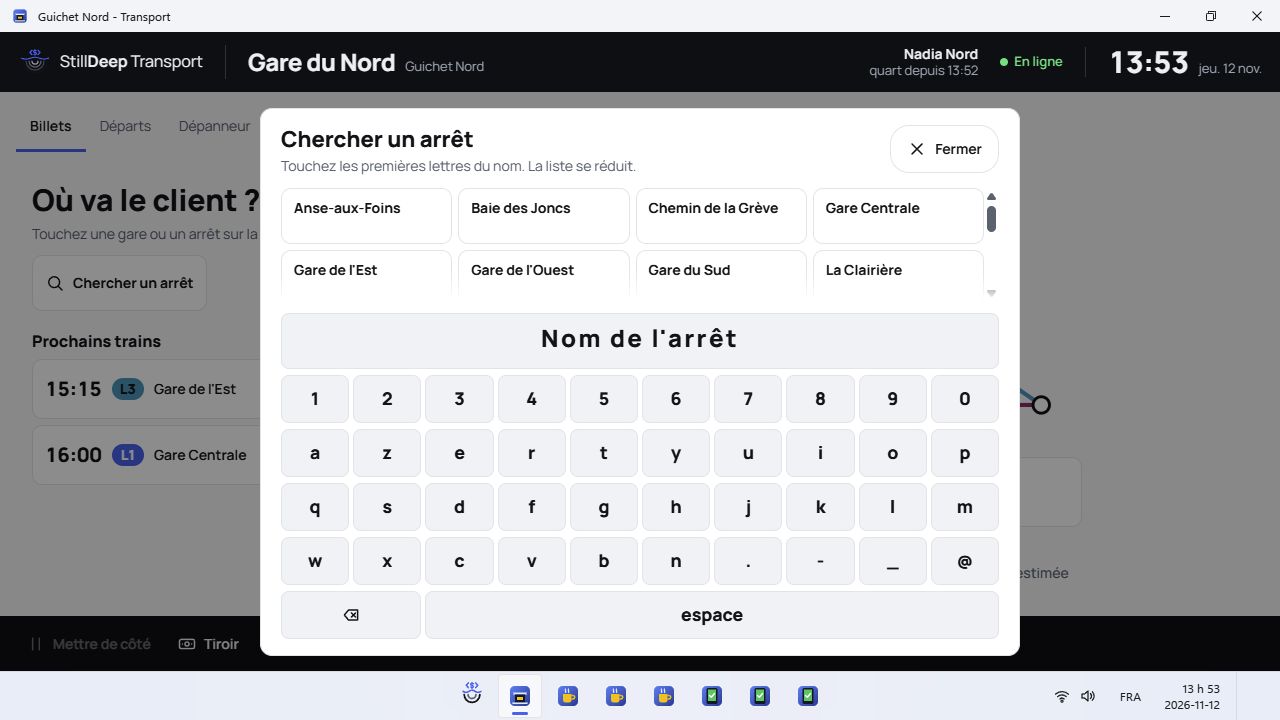
Choose origin, destination, date and journey type. Search and select an available departure. Enter passengers and fares. Choose the class and seats when requested; the engine calculates the route and price.
Review the tickets and use an offered test payment. View ticket codes and printed output on screen.
Kiosk: the passenger journey
Open a station kiosk and choose Start your purchase. The origin is the kiosk’s station.
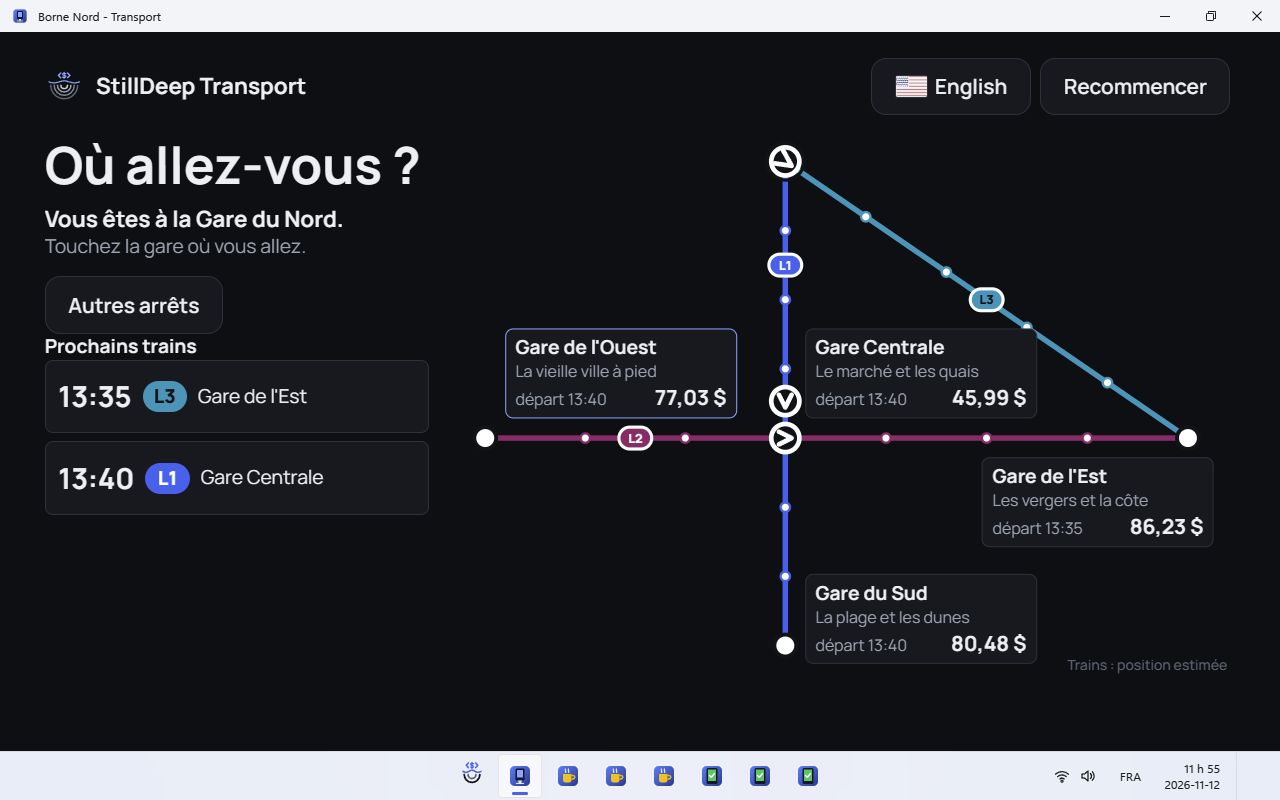
Open a station kiosk and choose Start your purchase. The origin is the kiosk’s station. Select the destination on the map or its cards. Review the next train and choose the desired journey.
Follow the offered date, passenger, fare and seat steps. Review the summary.
Use only the indicated test payment. Restart returns to the beginning; inactivity may also reset the kiosk.
Train register: onboard sales
Open Train 1 register. It has its own register, separate from station desks.
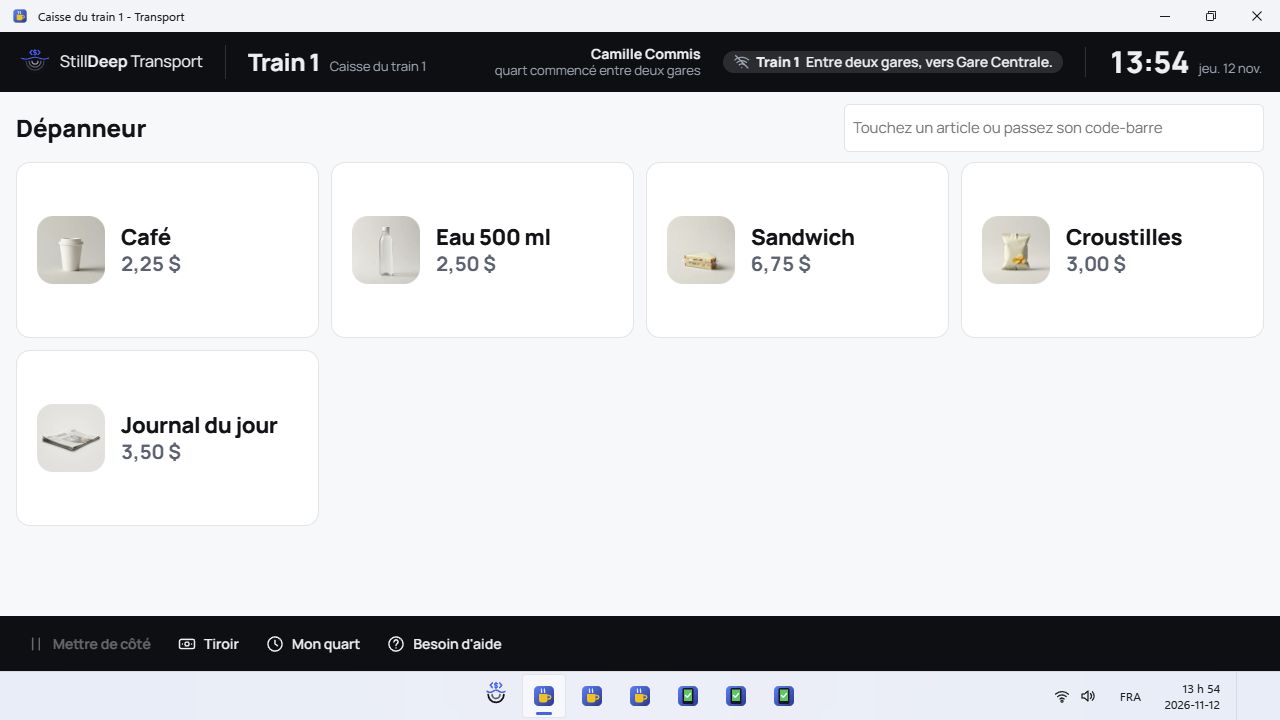
Open Train 1 register. It has its own register, separate from station desks. Sign in with the offered test account while the train is online. A first sign-in between stations may require waiting for the connection.
Find and add available items, then choose the customer or destination when requested.
Check connection status. Supported offline operations wait for synchronization; not every function is necessarily available offline.
Train tablet: check a ticket
Open Train 1 tablet and use the conductor’s test account.
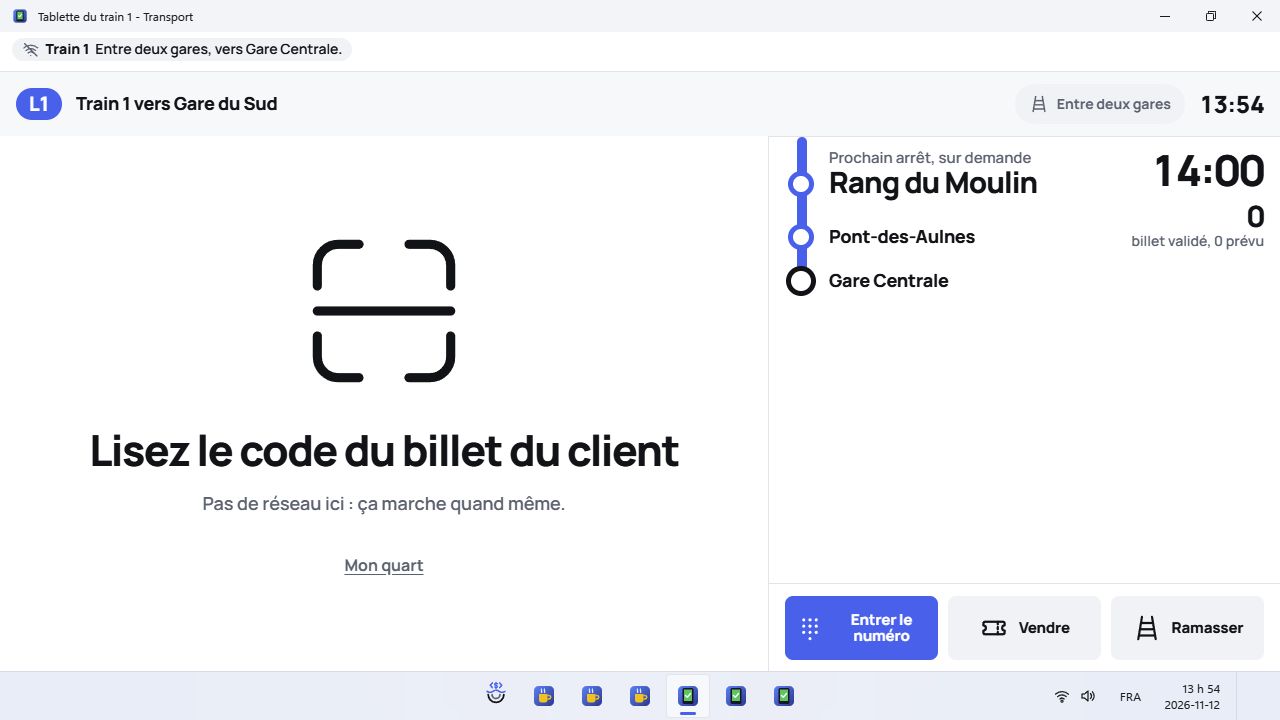
Open Train 1 tablet and use the conductor’s test account. Enter or scan a ticket code created in this demo. Keyboard scanners and cameras depend on the device and its permissions.
Review the journey and check result before confirming any offered ticket action.
Watch the train’s connection. Offline checking depends on data already received by the register.
Driver: train status and position
Open Train 1 driver. Review the journey, stops and available position information.
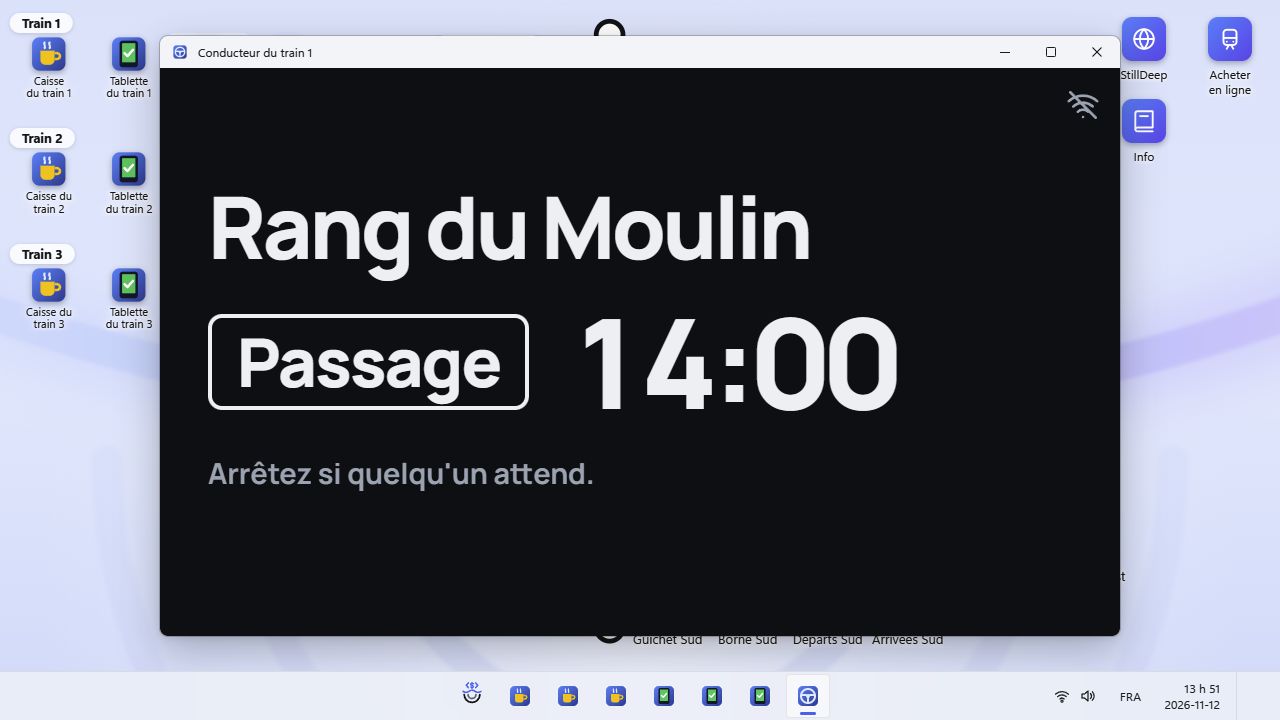
Open Train 1 driver. Review the journey, stops and available position information. Watch simulator updates. Positions come from the onboard register, not your tablet’s GPS.
Change a simulation control only if you intend to affect that fictional train. Its state is visible in the demo’s other screens.
Delays and lost connections are part of the scenario; also review the map and station boards.
Train map: passenger display
Open Train 1 map. This display shows the network and journey information.
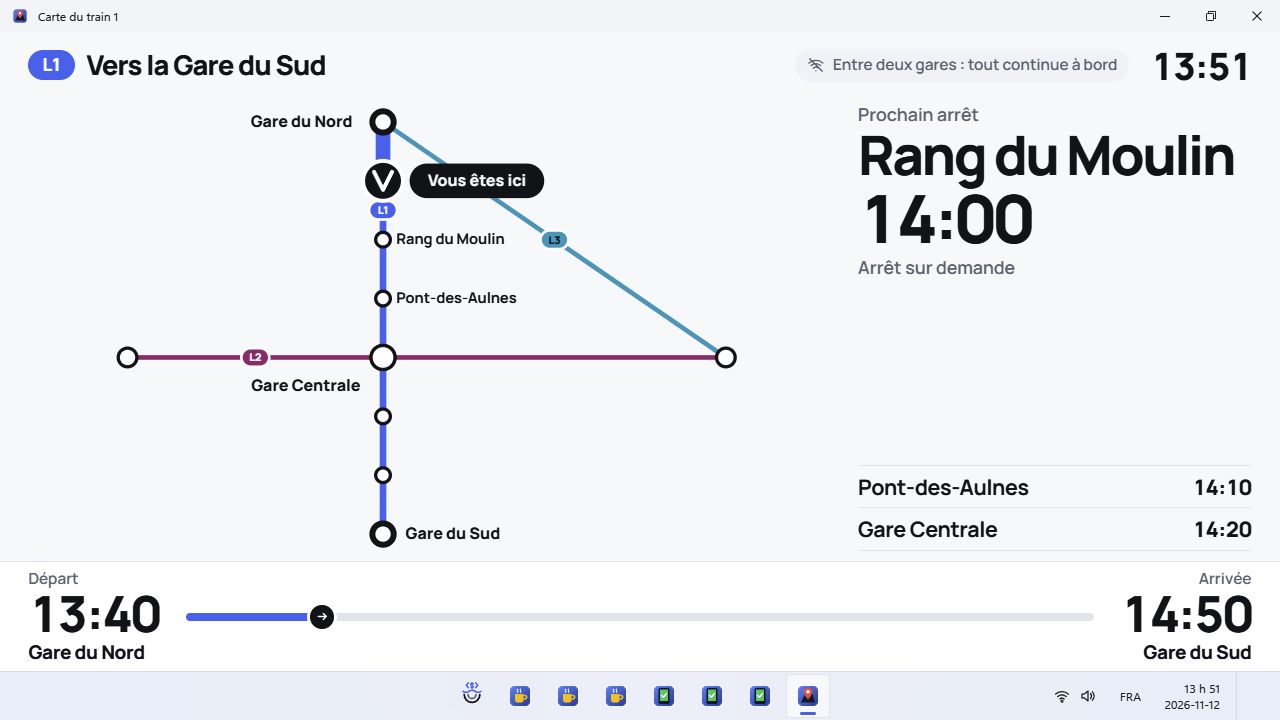
Open Train 1 map. This display shows the network and journey information. Locate the train, next stop and offered progress information.
Compare the position with the driver screen and station board. This is a simulation, not a real journey.
Station departures: review upcoming trains
Open North departures, or another station’s board. No sales shift is required.
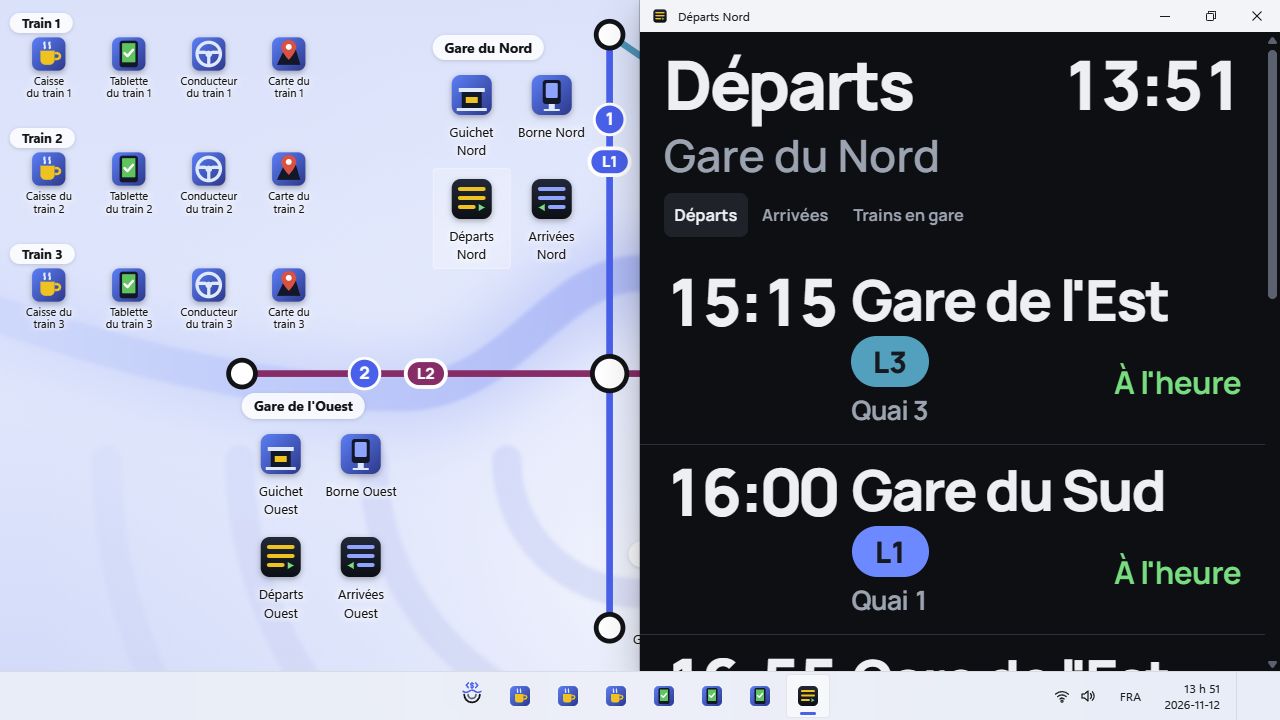
Open North departures, or another station’s board. No sales shift is required. Read destinations, times and train states. Information follows the simulator and demo timetable.
If a time is unconfirmed, wait for journey updates or review the driver screen. The board is read-only, not a ticket desk.
Station arrivals: follow expected trains
Open North arrivals, or the station board you want to review.
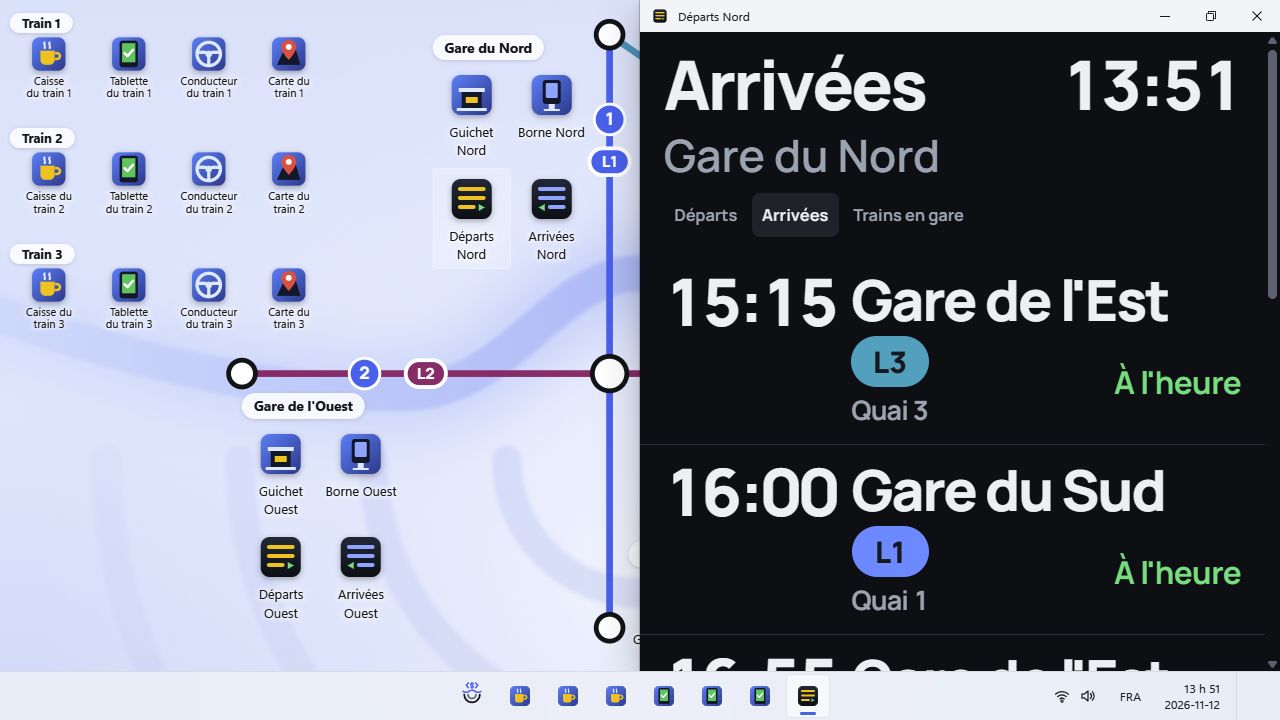
Open North arrivals, or the station board you want to review. Review origins, times and displayed states. Compare them with departures or the train map.
No train in a given period can be normal. This screen does not create bookings or take payment.
Online ticket purchase
Use Buy online from the desktop, or open /billets on the Transport domain.
Choose origin, destination and date, then a result. Review transfers and times.
Enter fictional passengers, fares and seats. Review the order before payment.
Use only the test cards indicated on the site. Keep the displayed codes to try checking them on the train tablet.
Before you test
Use fictional information and only the test accounts and payment methods indicated on screen. Demo data may be shared by visitors: a confirmed sale, booking or stock change can affect the next test. An empty list may mean that a different date, employee or warehouse is selected.
Train positions and journeys are simulated. This is a software demonstration, not a real transport service. Camera scanning depends on the device and browser permissions.
MAKE IT YOUR OWN
The visual interfaces are provided and editable
The example interfaces are available as source code. You can adapt their screens, layouts, colours and visual assets to your own business or brand, under the terms of the example repository’s licence. These demos show different interfaces built on the same StillDeep engine.
The StillDeep engine is proprietary and separate from the example interfaces. Making the interface available does not make the engine open source.